Tuesday, March 21, 2017

QR Stuff

QR Stuff

Excellent QR code creator.  
Paste URL or answers to questions in spot provided and generate a code in any colour you want.  Download the code to put on class documents.

Examples:
1.  Direct students/parents easily to a designated website or to a YouTube video showcasing student work.
2.  Construct an assignment where the answers or help for the questions are hidden as a QR code.


Typing/Keyboarding Programs

Typing.com

  • Grades 4 and older
  • Free
  • Class accounts available to monitor progress
  • Games and typing tests


Dance Mat Typing  (BBC Bitesize)

  • Grades 2 -4
  • Free, no sign in required
  • 4 levels with 3 stages each (progress not saved)


KidzType

  • Ages 9-15
  • Free
  • No sign in required, no class accounts (progress not saved)


Monday, March 21, 2016

Scratch


Scratch

This is an excellent website for building computer science coding skills for all ages. 


"With Scratch, you can program your own interactive stories, games, and animations — and share your creations with others in the online community.
Scratch helps young people learn to think creatively, reason systematically, and work collaboratively — essential skills for life in the 21st century." (https://scratch.mit.edu/about/)


Friday, February 12, 2016

Google: Voice Typing

Google Docs:  Voice Typing  (new feature, Fall 2015)


Commands: 

-period
-comma
-question mark
-exclamation mark
-new line
-new paragraph


There is also the ability to change the default language.

You can also use text to speech on your Android or iOS device - 
 
Read article

Tuesday, November 3, 2015

Google My Maps

There is an excellent tool added to your Google Drive this week - it is called Google My Maps. It is very similar to the regular Google Maps, but is now integrated into your Drive. It also cooperates nicely with Google Forms as well - you can collect map data and have it plotted for you. Any grade level can easily use this application.

In your Google Drive, press New, then scroll down the list until you see Google My Maps.  You can generate custom maps that outline the story line of a novel, or events that took place during World War II...etc.  All maps are saved in your Google Drive and can be shared with anyone.


You can integrate data collected in a Google Form (survey) to be seamlessly added to your map.  In the simple example below, the survey asked students to enter their favourite vacation spot.  The spreadsheet generated from the survey is imported into My Maps and placed automatically on the map.  There you can share the map with students and they can add photos to their place marker.  The end result is a tour of these places.


Here is a tutorial video outlining the process: 
Importing data into Google My Maps: https://youtu.be/S3QIq5B0L-o


Thursday, October 22, 2015

Piktochart: A Great Visual Communication Tool!

Create exciting and interesting INFOGRAPHICS with Piktochart!


  • Free to join
  • Use your Google account to sign up


Create great infographics, reports and presentations to display photos, stats, information, YouTube clips, and graphs with this amazing online application.  Students will find it very user friendly and easy to share their work.  Built in graph maker.  Great for class projects in which data is displayed.  Has more features for reports and presentations than applications such as PowerPoint or Google Slides. Many templates and graphics included.

Infographics are easily shared via email.

Please watch this short video:  Video Introduction


Poll Everywhere in Google Slides


Poll Everywhere for Google Slides

This is an excellent add-on to Google Slides!  Set up a free Poll Everywhere account, make your assessments or polls and easily add them to your Google Slide presentation for live, on the fly results!

Your audience can sign in to your poll through a web link or through text messaging.

Available now in Google Labs (beta)


Wednesday, October 7, 2015

Google Sheets: Explore!

Video Introduction to Google Explore - found within Google Sheets

"With the Explore panel in Google Sheets, you can now spend less time trying to decipher your data, and more time making a point. Explore creates charts and insights automatically, so you can visualize trends and understand your data in seconds. It’s like having an expert analyst right by your side."

Once your data has been entered, click the button in the lower right hand corner of your screen to show the 'Explore' results.  Graph styles will be automatically chosen for your based on the type of data provided.


New Google Templates

Google has recently revamped its templates for products such as Google Docs, Sheets, and Slides.  The templates are now much easier to find and use.  Please share this with students as these can help them with their assignments and projects (as well as yours!).

Examples of Templates:

Docs:  brochure, resume, reports, letters, lesson plans
Sheets:  calendar, schedule, budget, to do list, planner, roster, time sheet, expense reports, purchase orders
Slides: book report, field trip, photo album, certificates, portfolio, lesson plans, recipe book

There are two ways to access these templates. 
Method 1: 
In any of the applications, once open:  >File, >New, >from Template


​


Method #2:
Use the app button to access the application and these templates will be the first thing you see.  
Select Docs for example,

​

​

​


Students could then bookmark the app and use it instead of starting the document from within My Drive.


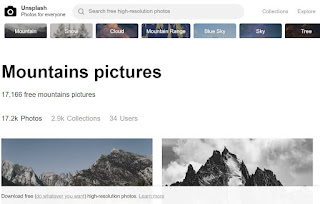
Unsplash - free photo gallery

Unsplash A wonderful collection of free photos. The photos below model good digital citizenship by giving attribution to the photographer....