Citelighter is an easy-to-use academic research tool that utilizes a community of students to help you find valuable content, automatically cite sources, and provide an organizational framework for writing your papers."This service was originally designed to only work as a toolbar add-on application in the Mozilla Firefox browser but they have thankfully updated it to also work on Google Chrome. Staff and students may want to download and install Mozilla or Google Chrome from PortableApps.com onto a portable flash drive or on their desktop.
Showing posts with label Research. Show all posts
Showing posts with label Research. Show all posts
Friday, March 15, 2013
Citelighter - collect information from the web through your Mozilla Firefox browser


Friday, June 24, 2011
Google Squared Labs - Instant Table Builder
"Google Squared is an experimental tool that takes a category (like Canadian provinces, roller coasters, or digital cameras, etc.) and attempts to create a starter "square" of information, automatically fetching and organizing facts from across the web. You can modify your square by removing rows and columns you don't like--or by adding new rows and columns and having Google Squared attempt to fetch the relevant facts. Verify and correct the facts in your square by exploring the original sources and investigating other possible values. If you're happy with your square you can save it and come back to it later. Google Squared does the grunt work for you, making research fast and easy."

Saturday, June 4, 2011
Better Searches, Better Results
For help in improving your internet search techniques and therefore results, you may want to try out some of the helpful ways to search for information courtesy of Google.
These tips will aid in searching for an exact phrase, excluded words, similar words, multiple words and numerical ranges. For example, you can start a search but exclude certain words in that search. bass -fishing This way you will get results about a bass instrument, rather than a fish.
Using the Google search suggestions can also be used to more easily find definitions, site specific information, math answers and conversions right within the search engine. For example, you can type a simple math equation into the Google search bar and the answer will be given directly below - no need to go to a website or calculator.
Google Search posters
Google Search help -see this for more features you can use to narrow the focus of your searches
These tips will aid in searching for an exact phrase, excluded words, similar words, multiple words and numerical ranges. For example, you can start a search but exclude certain words in that search. bass -fishing This way you will get results about a bass instrument, rather than a fish.
Using the Google search suggestions can also be used to more easily find definitions, site specific information, math answers and conversions right within the search engine. For example, you can type a simple math equation into the Google search bar and the answer will be given directly below - no need to go to a website or calculator.
Google Search posters
Google Search help -see this for more features you can use to narrow the focus of your searches
Friday, April 15, 2011
Learn Alberta's Online Reference Center
A major problem students and teachers encounter when doing research is when the internet is unavailable or slow because of heavy traffic to a particular site. Sometimes sites become dead links or valuable time is wasted when students aren't focusing their research on age appropriate information.
Built into every school's library home page is a link to Learn Alberta's Online Reference Center which supplies a wealth of research resources for students and teachers that are broken down into age appropriateness.
As all this information is stored and regularly updated on an independent server in each school library, these resources offer immediate access as they aren't reliant on the World Wide Web. You will not get a slow or dead primary link using this service as long as you are logged into LPSD. However, others links within these services may be dead or slow if they are dependent on accessing the World Wide Web. Access at home is available if you use LPSD's login and password which can be located at the top of the webpage.
All resources are listed in alphabetical order:
Accent: Discover French Beyond the Classroom| Grades K-12
Advance Placement Source| Grades 10-12
AlbertaSource.ca The Alberta Online Encyclopedia| Grades 6-12
Amazing Animals of the World| Grades K-6
The Atlas of Canada| Grades 6-12
Bookflix| Grades K-3
The Canadian Encyclopedia| Grades 5-12
Canadian Reference Center| Grades 7-12
Culturegrams| Grades 3-12
Early Canadiana Online| Grades 9-12
EBSCOhost| Grades 7-12
eLibrary Canada: Curriculum Edition| Grades 6-12
eLibrary Elementary| Grades 4-8
Grolier Online Passport| Grades 7-12
History Study Center| Grades 9-12
Novelist K-8 Plus| Grades K-8
Novelist Plus| Grades 9-12
Opposing Views In Context| Grades 7-12
Peel's Prairie Provinces| Grades 6-12
ProQuest Learning Literature| Grades 9-12
Science in Context| Grades 6-12
Statistics Canada: Learning Resources| Grades K-12
TeachingBooks.net| Grades K-12
World Book Advanced| Grades 8-12
World Book Kids| Grades K-3
World Book Student| Grades 4-9
Built into every school's library home page is a link to Learn Alberta's Online Reference Center which supplies a wealth of research resources for students and teachers that are broken down into age appropriateness.
As all this information is stored and regularly updated on an independent server in each school library, these resources offer immediate access as they aren't reliant on the World Wide Web. You will not get a slow or dead primary link using this service as long as you are logged into LPSD. However, others links within these services may be dead or slow if they are dependent on accessing the World Wide Web. Access at home is available if you use LPSD's login and password which can be located at the top of the webpage.
All resources are listed in alphabetical order:
Accent: Discover French Beyond the Classroom| Grades K-12
Advance Placement Source| Grades 10-12
AlbertaSource.ca The Alberta Online Encyclopedia| Grades 6-12
Amazing Animals of the World| Grades K-6
The Atlas of Canada| Grades 6-12
Bookflix| Grades K-3
The Canadian Encyclopedia| Grades 5-12
Canadian Reference Center| Grades 7-12
Culturegrams| Grades 3-12
Early Canadiana Online| Grades 9-12
EBSCOhost| Grades 7-12
eLibrary Canada: Curriculum Edition| Grades 6-12
eLibrary Elementary| Grades 4-8
Grolier Online Passport| Grades 7-12
History Study Center| Grades 9-12
Novelist K-8 Plus| Grades K-8
Novelist Plus| Grades 9-12
Opposing Views In Context| Grades 7-12
Peel's Prairie Provinces| Grades 6-12
ProQuest Learning Literature| Grades 9-12
Science in Context| Grades 6-12
Statistics Canada: Learning Resources| Grades K-12
TeachingBooks.net| Grades K-12
World Book Advanced| Grades 8-12
World Book Kids| Grades K-3
World Book Student| Grades 4-9
Thursday, April 7, 2011
Google Earth Tours
Google Earth
There are many features to Google Earth that you and your students can use in the classroom. Aside from finding directions, they can access the street level view which was added a few years ago. Most towns and cities now have this feature. Simply grab and drag the yellow street level man onto any city street and you will automatically zoom in. You can then get a 360 degree view of the street if you use the left and right arrow keys, or drive along the street using the up and down arrows!
There are many features to Google Earth that you and your students can use in the classroom. Aside from finding directions, they can access the street level view which was added a few years ago. Most towns and cities now have this feature. Simply grab and drag the yellow street level man onto any city street and you will automatically zoom in. You can then get a 360 degree view of the street if you use the left and right arrow keys, or drive along the street using the up and down arrows!

Please contact your technology coach for assistance in setting up tours, organizing files within Google Earth, and exporting tours so they can be shared between teachers and students.
Did you know that you can also record tours? In Google Earth 5 and 6, there is the ability to record all of your actions on the screen, so you can save them to show repeatedly. For example, you might have a tour that flys through the Grand Canyon, flys to the Seven Wonders of the World, or follows a historical event such as the settlement of Western Canada by the Barr Colonists or the historical places involved in the Northwest Rebellion. Contact your tech coach to help you or put you in touch with teachers who have used this feature.
Google Maps:
Did you know that you can also record tours? In Google Earth 5 and 6, there is the ability to record all of your actions on the screen, so you can save them to show repeatedly. For example, you might have a tour that flys through the Grand Canyon, flys to the Seven Wonders of the World, or follows a historical event such as the settlement of Western Canada by the Barr Colonists or the historical places involved in the Northwest Rebellion. Contact your tech coach to help you or put you in touch with teachers who have used this feature.
Google Maps:
 Make your own tours (lit tours, geological tours, holiday summaries, historical place tours etc). Using an email account, set up a private or public display of these tours. When you make it private, you can select who will see your map tour. Students can create an itinerary to follow as if they were running a tour company. This type of lesson incorporates research, geography, and creative writing all in one!
Google Maps
GoogleTreks:
This website houses many teacher approved 'tours' in many different subject areas and grade levels. It uses the Google Maps feature that allows the user to place video, photos, websites, and text to make custom tours. Rubrics are provided to help plan the tour before submitting it to the site for approval.
Subscribe to:
Posts (Atom)
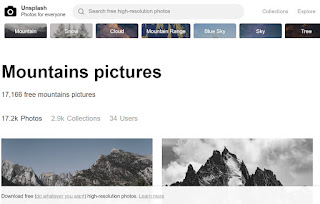
Unsplash - free photo gallery
Unsplash A wonderful collection of free photos. The photos below model good digital citizenship by giving attribution to the photographer....
-
 WeVideo is a collaborative, online video editor that stores your working and finished files in the "cloud". By setting up a free...
 -
 Unsplash A wonderful collection of free photos. The photos below model good digital citizenship by giving attribution to the photographer....
 -
Tagxedo - highly recommended! This program allows you to save the word cloud you have generated. There are a multitude of options inclu...
